
 By Amelia James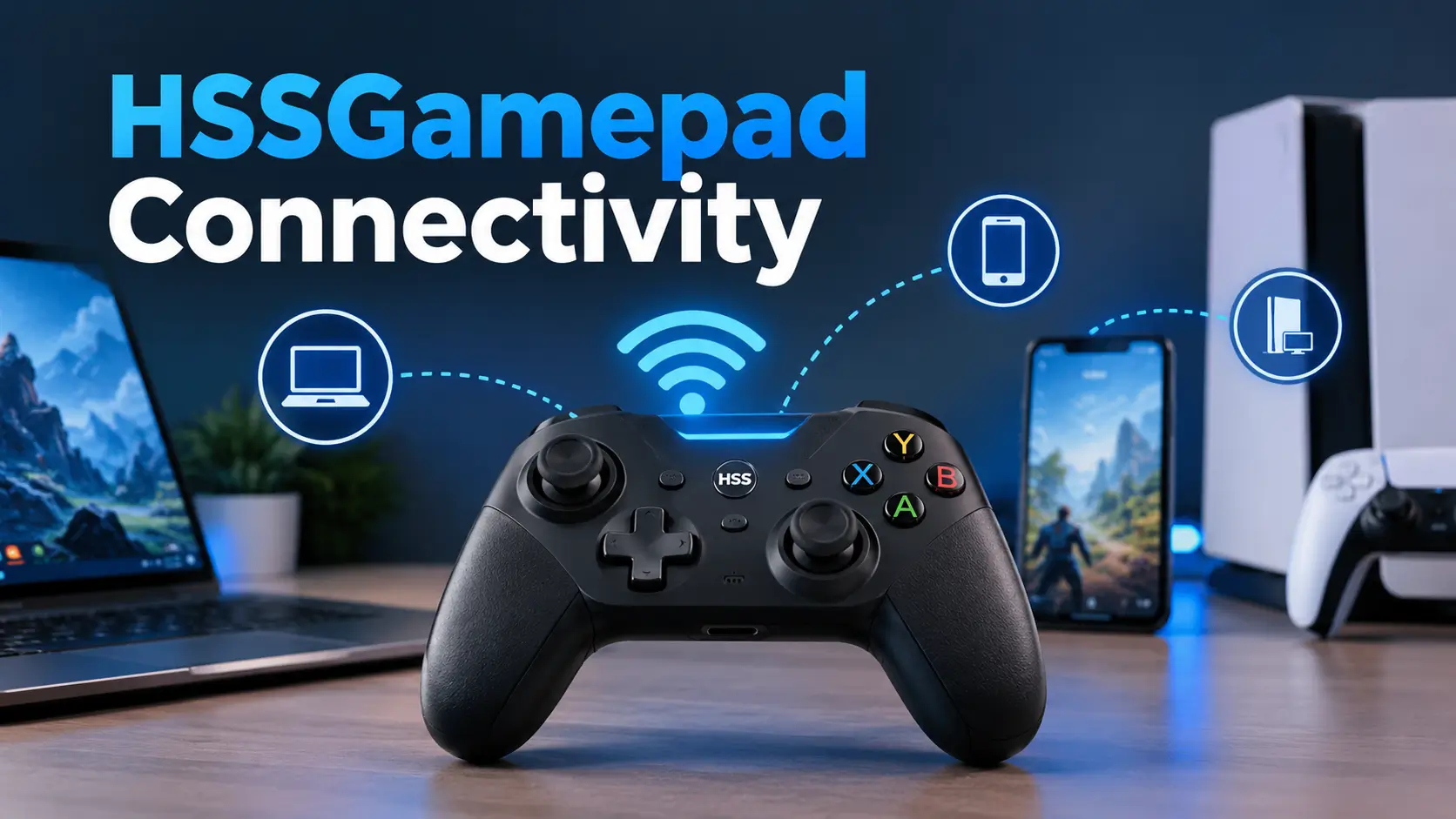
Wireless gaming controllers make life easier. No tangled wires, no restrictions on where you sit. But that convenience only works when the connection stays stable.
This is exactly why so many gamers search for help with HSSGamepad connectivity. Whether you’re setting up the controller for the first time or dealing with random disconnects, understanding how the connection actually works makes a huge difference.
In this guide, Teche Advice breaks down everything about HSSGamepad connectivity. We keep things simple, with short sentences and clear steps. By the end, you will know exactly how to connect your controller to any device, and how to fix common connection problems.
Let’s get started.
HSSGamepad connectivity refers to how the controller communicates with your gaming device. This includes phones, tablets, PCs, and Smart TVs. The controller sends tiny signals every time you press a button, and those signals need to reach your device instantly.
The HSSGamepad is a multi-platform controller. This means it’s built to work across different systems, not just one specific device. That flexibility is one of its biggest strengths.
Depending on the model, the gamepad usually supports:
- Bluetooth wireless pairing
- A 2.4GHz USB wireless dongle
- A direct USB wired connection
Each of these methods works a little differently. Understanding how they function helps you choose the right setup for your gaming needs, and helps you fix problems faster when something goes wrong.
Before setting up your controller, it helps to understand the three main connection modes. Each one has its own strengths, depending on your device and gaming style.
Bluetooth is the most common way to connect the HSSGamepad wirelessly. It works directly with phones, tablets, PCs, and Smart TVs without needing any extra hardware.
This mode is popular because of its convenience. You don’t need a dongle or a cable, just a simple pairing process through your device’s Bluetooth settings.
However, Bluetooth can sometimes be affected by interference from other wireless devices nearby, such as routers or headphones.
This mode uses a small USB receiver that plugs directly into your PC or TV. Instead of relying on Bluetooth, it creates a more direct wireless connection between the dongle and the controller.
Many gamers prefer this mode for PC gaming, since it often provides a more stable connection compared to Bluetooth, especially in busy wireless environments.
For the most stable connection possible, a wired USB setup is often the best choice. This method removes wireless interference completely, since the controller connects directly through a cable.
Wired mode is especially useful for fast-paced or competitive games, where even small delays can affect gameplay performance.
Connecting your HSSGamepad to a Windows PC is a simple process. Here’s a step-by-step guide to help you get started.
- Charge the gamepad fully before attempting to connect.
- Choose your preferred connection method: Bluetooth, USB dongle, or wired USB.
- For Bluetooth, go to Windows Settings, select Devices, then Bluetooth & Other Devices.
- Turn on the gamepad and hold the pairing button until the LED blinks rapidly.
- Select the HSSGamepad Connectivity from the list of available devices.
- Wait for the LED to turn solid, confirming a successful connection.
If you’re using the dongle instead, simply plug it into a rear USB port on your PC, since front-panel ports and hubs are more likely to cause signal drops. For wired mode, just connect the USB cable directly, and the PC should recognize the controller automatically.
Once connected, make sure your drivers are updated. Outdated drivers are a common reason controllers fail to respond properly, even after a successful pairing.
Android devices generally support gamepad connections smoothly, especially through Bluetooth. Here’s how to set it up.
- Open your Android device’s Settings app.
- Go to Connected Devices, then select Bluetooth.
- Turn on the HSSGamepad Connectivity and hold the Bluetooth button until the LED starts blinking quickly.
- Look for the HSSGamepad Connectivity in the list of available devices and tap it.
- Wait for the LED to become solid, confirming the pairing was successful.
After pairing, open a game that supports controller input. Some games recognize the gamepad automatically, while others may require a mapping app to properly detect button inputs.
If the gamepad pairs but buttons don’t respond, restarting the game or reconnecting the controller often solves the issue.
iOS devices also support HSSGamepad connectivity through Bluetooth. The process is similar to Android, with a few small differences.
- Open the Settings app on your iPhone or iPad.
- Tap Bluetooth and make sure it’s turned on.
- Power on the gamepad and activate pairing mode by holding the Bluetooth button.
- Select the HSSGamepad Connectivity once it appears under Other Devices.
- Confirm the connection once the LED indicator turns solid.
Keep in mind that not all iOS games support external controllers. Before troubleshooting a connection issue, check whether the specific game you’re playing actually supports gamepad input.
Many Smart TVs also support Bluetooth controllers, making them compatible with the HSSGamepad. This is especially useful for cloud gaming platforms.
- Open the settings menu on your Smart TV.
- Navigate to the Bluetooth or Remotes and Accessories section.
- Turn on the gamepad and hold the pairing button until the LED blinks.
- Select the HSSGamepad from the list of available devices on your TV.
- Wait for confirmation that the pairing was successful.
For TVs without reliable Bluetooth support, the 2.4GHz USB dongle often works as a better alternative, since it creates a more direct wireless connection.
Understanding how to properly activate pairing mode is essential, since simply turning on the gamepad isn’t the same as making it discoverable.
To activate pairing mode:
- Hold the Bluetooth or pairing button for three to five seconds.
- Watch for the LED indicator to start blinking rapidly.
- A fast blink means the gamepad is actively searching for a device.
- Once paired successfully, the LED will switch to a solid light.
If the LED doesn’t start blinking at all, the battery may be too low, or the pairing button may need to be held slightly longer. Always confirm the gamepad is charged before troubleshooting further.
Even with a proper setup, connectivity issues can still happen. Understanding the most common problems makes troubleshooting much easier.
This is one of the most frequent issues gamers face. It often happens because of incorrect pairing steps, low battery, or Bluetooth interference.
Common signs include:
- The controller doesn’t appear in the Bluetooth device list
- Pairing attempts fail repeatedly
- The device seems to freeze during the pairing process
Sometimes the gamepad connects successfully but disconnects unexpectedly during a match. This can be frustrating, especially during competitive gaming sessions.
This issue is often linked to:
- Low battery levels
- Wireless interference from nearby devices
- Weak signal strength due to distance
Input lag happens when there’s a noticeable delay between pressing a button and seeing the action on screen. Unlike a full disconnect, the controller stays connected but responds slowly.
This is especially problematic in fast-paced games, where even a small delay can affect performance and timing.
Most HSSGamepad connectivity problems can be fixed with a few simple troubleshooting steps.
- Charge the controller fully. Low battery is one of the most common causes of connection failures.
- Forget and re-pair the device. Go into Bluetooth settings, remove the HSSGamepad, and pair it again from scratch.
- Move closer to your device. Distance and physical obstacles can weaken the wireless signal.
- Reduce nearby interference. Turn off other Bluetooth devices temporarily if possible.
- Update drivers or firmware. Outdated software is a common hidden cause of connection issues.
- Switch connection modes. If Bluetooth keeps failing, try the USB dongle or a wired connection instead.
Working through these steps in order usually resolves most connectivity problems without needing any technical expertise.
Beyond basic troubleshooting, a few extra habits can help maintain a smoother, more reliable connection over time.
- Keep the battery charged regularly, rather than waiting until it’s completely empty.
- Avoid using multiple Bluetooth devices at once, since this can create signal congestion.
- Use the rear USB ports on your PC for dongle connections, since they’re generally more stable.
- Keep firmware updated, if your gamepad model supports updates.
- Choose wired mode for competitive gaming, where consistency matters most.
Following these small habits can significantly reduce the chances of running into connectivity issues in the first place.
With three different connection options available, choosing the right one depends on your specific gaming needs.
- Bluetooth works best for casual gaming on phones, tablets, or TVs, where convenience matters most.
- 2.4GHz dongle mode offers a good balance of wireless freedom and stability, especially for PC gaming.
- USB wired mode is ideal for competitive or fast-paced games, where consistent performance is the top priority.
There’s no single “best” option for everyone. Instead, the right choice depends on what device you’re using and how important stability is for your specific gaming sessions.
Understanding how gaming accessories work can sometimes feel confusing, especially with so many devices and settings involved. That is where Teche Advice comes in. Our team focuses on breaking down tech and gaming topics into simple, easy-to-follow guides.
Whether you’re setting up a new controller or troubleshooting a connection issue, Teche Advice offers some of the best resources for solving everyday gaming tech problems. We aim to make these topics approachable, no matter your experience level.
Understanding HSSGamepad connectivity makes a real difference in your overall gaming experience. Whether you’re connecting through Bluetooth, a 2.4GHz dongle, or a wired USB cable, knowing how each mode works helps you choose the best setup for your needs.
Most connectivity issues, from pairing failures to random disconnects, come down to simple, fixable causes like low battery, interference, or outdated drivers. With the right setup and a few basic troubleshooting habits, you can enjoy a smooth, stable, and lag-free gaming experience across any device.
Hold the Bluetooth button for a few seconds until the LED starts blinking fast. This shows the gamepad is actively searching for a device. Once paired successfully, the LED turns solid instead of blinking.
This usually happens due to low battery, wireless interference, or outdated drivers. Other Bluetooth devices nearby can also disrupt the signal strength. Charging fully and reducing interference often solves the issue quickly.
Yes, HSSGamepad supports pairing across different platforms like Android, iOS, and PC. However, it usually connects to only one device at a time. You’ll need to unpair before switching to a completely new device.
USB wired mode generally offers the most stable and lag-free performance overall. Bluetooth is convenient but can face occasional wireless interference. The 2.4GHz dongle mode is a good middle-ground option for PCs and TVs.
Check if the correct drivers are installed and fully updated on your PC. Try switching the USB port or using the provided wireless dongle instead. Restarting the device often resolves basic recognition issues too.
[…] gaming changes so quickly, having one clear guide can save a lot of time. That is exactly what this article […]